Guide
How to cull a wedding fast
A thousand frames from a wedding day, and a client waiting. This is a culling workflow for a Mac: let the AI sweep out the obvious misses first, then make the real decisions from the keyboard, one pass at a time.
Step 1
Import with a backup
Start safe, so you can cull without worrying about the card.
- Insert the card and choose File › Import Photos (⇧⌘I).
- Type the couple’s name as the shoot name and turn on a backup copy to another drive.
- Shooting RAW + JPEG? Leave Stack RAW + JPEG on in the filter bar, so each moment shows once.
- ⇧⌘I
- Import photos
Step 2
Let AI Cull do the first sweep
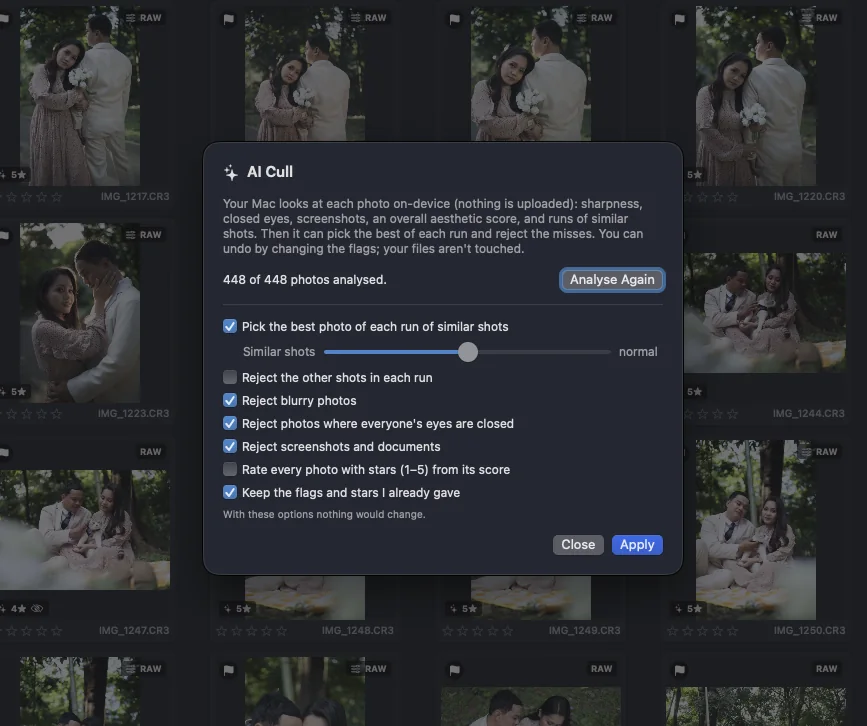
Before you look at a single photo, let your Mac find the obvious misses. It runs on-device with Apple’s Vision framework; nothing is uploaded.
- In the Grid, click AI Cull in the filter bar and let it analyse the folder.
- Turn on: pick the best photo of each run of similar shots, reject blurry photos, reject photos where everyone’s eyes are closed.
- Keep “Keep the flags and stars I already gave” on, then Apply. Every flag can still be changed by hand.
Step 3
First pass: keep or reject, nothing else
Go through every frame once and only decide keep or reject. No editing, no stars yet.
- Press E for the large Loupe view and turn on Auto-advance in the filter bar.
- Press P to keep and X to reject; the next photo comes up by itself. Use ← and → to go back.
- Tip: after AI Cull, Best first sorts the strongest frames to the top.
- E
- Loupe
- P / X / U
- Pick / Reject / Unflag
- ← →
- Previous / next
Step 4
Check focus on the moments that matter
Rings, the first kiss, the vows: zoom in before you commit.
- Press ⇧F for focus peaking: sharp edges turn red.
- Press ⇧Z to jump to 100% on the sharpest area of the frame, usually the eyes you focused on.
- ⇧F
- Focus peaking
- ⇧Z
- Zoom to sharpest
Step 5
Choose the best frame of each burst
For bursts of the same moment, look at them side by side instead of one by one.
- Select the burst in the Grid and press N for Survey.
- Click the best one and press P; reject the rest with X, or drop them from the view.
- Press C to Compare two at a time when it’s close.
- N
- Survey
- C
- Compare
Step 6
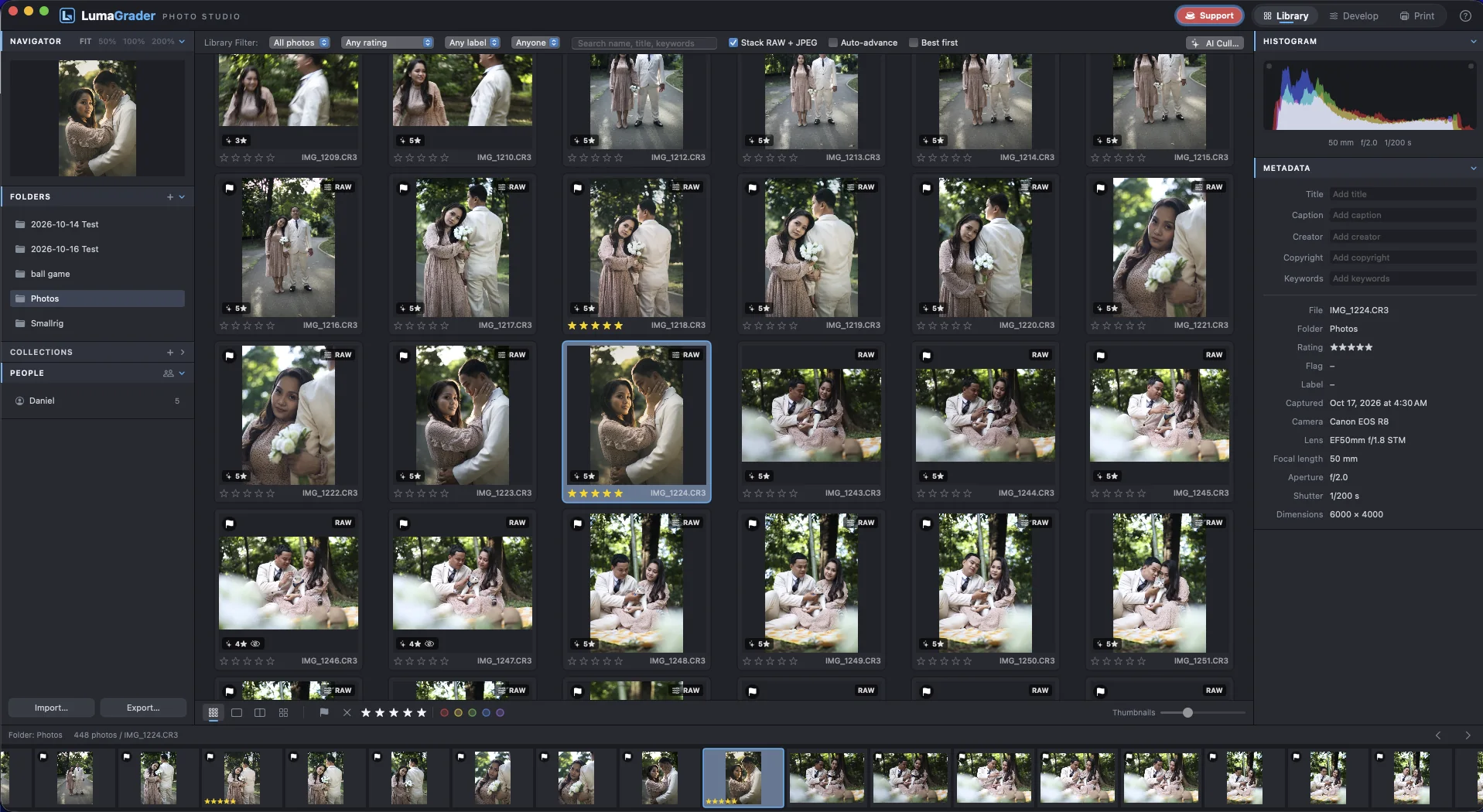
Second pass: stars for what goes where
Now show only the keepers and rank them.
- In the filter bar, show Picks only.
- Give stars by purpose, for example 5 for the album, 4 for the online gallery, 3 for the full delivery.
- Use colour labels for jobs: red for photos that need retouching, for example.
- 1–5
- Stars
- 6–9
- Colour labels
Step 7
Hand off: edit, deliver or let the couple choose
The cull is done. From here:
- Edit one photo per scene in Develop, then Sync the look to the rest of that scene.
- Export the picks (⇧⌘E) for delivery.
- Or send a Proofing Gallery so the couple hearts their album favourites; Import Client Picks marks them Purple.
- ⇧⌘E
- Export
- ⇧⌘S
- Sync settings
Free for Mac. macOS 14 Sonoma or newer, Apple silicon or Intel.
Download for Mac