Shoot tethered
Connect your camera and every frame appears large on screen the moment it’s taken, with your look already applied. Made for studio portraits, products and events.
How it works
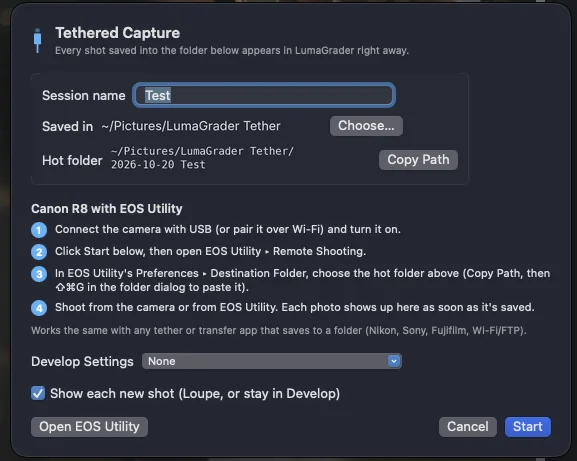
LumaGrader watches a folder; Canon’s free EOS Utility saves each shot into it.
- Install Canon EOS Utility and connect the camera with a USB-C data cable.
- In LumaGrader, choose File › Tethered Capture › Start, name the session and click Copy Path.
- In EOS Utility, set the destination folder to that path and open Remote Shooting.
- Shoot. Each new photo is imported, auto-rotated and shown right away.
Develop as you shoot
Apply nothing, the same settings as the previous shot, or a preset to every new frame, so the client sees the finished look on screen.
If the camera is busy
EOS Utility can’t reach the camera when another app holds it. Quit Image Capture and EOS Webcam Utility, then turn the camera off and on.
Free for Mac. macOS 14 Sonoma or newer, Apple silicon or Intel.
Download for Mac